-
Shop
- Advanced Technologies
- AI Skills
- Bathroom
- Best-Sellers
- Car Accessories
- Confidence
- Dating & Social Skills
- Digital Resources
- AI & Technology
- Beauty
- Budgeting & Saving
- Car Buying & Ownership
- Cozy Feast Collection
- Electronics & Technology
- Entrepreneurship & Business Growth
- Financial Education
- Financial Independence
- Financial Mindset & Psychology
- Goal Setting
- Home Styling & Organization
- Kitchen & Recipes
- Leadership
- Mindfulness
- Mindset
- Online Business
- Parenting & Child Development
- Personal Style & Fashion
- Pet Lifestyle & Wellness
- Positive Thinking
- Sleep Improvement
- Smart Life with AI
- Stress Management & Relaxation
- Travel Planning
- Wellness
- Yoga & Fitness
- Yoga & Mind-Body Practices
- Education & Learning
- Family & Parenting
- Fashion
- Accessories
- Alexander McQueen
- Bags
- Bags & Wallets
- Balenciaga
- Belts
- Blazers
- Bottega Veneta
- Bottoms
- Brunello Cucinelli
- Burberry
- Chanel
- Chloé
- Dior
- Dolce & Gabbana
- Dresses
- Etro
- Fendi
- Gucci
- Hats & Hair Accessories
- Hoodies & Sweatshirts
- Jacquemus
- Jewelry
- Jil Sander
- Kiton
- Luggage
- Miu Miu
- Off-White
- Outerwear
- Prada
- Rick Owens
- Saint Laurent
- Shoes
- Socks & Tights
- Sweaters & Cardigans
- The Row
- Tom Ford
- Tops & Shirts
- Valentino
- Valentino Garavani
- Versace
- Vivienne Westwood
- Watches
- Fashion Accessories
- Furniture
- Gadgets
- Health & Beauty
- Health & Wellness
- Home & Garden
- Home Decor
- Home Electronics
- Home Supplies
- Kids & Babies
- Kitchen
- Kitchen Best-Sellers
- Lighting
- Patio, Lawn & Garden
- Personal Growth
- Pet Care
- Pet Supplies
- Pets
- Sport & Outdoors
- Super Deals
- Travel
- Travel & Adventure
- Wealth
- Popular
- Best deals
Why Your Data Bundles Run Out Fast (And Fixes)
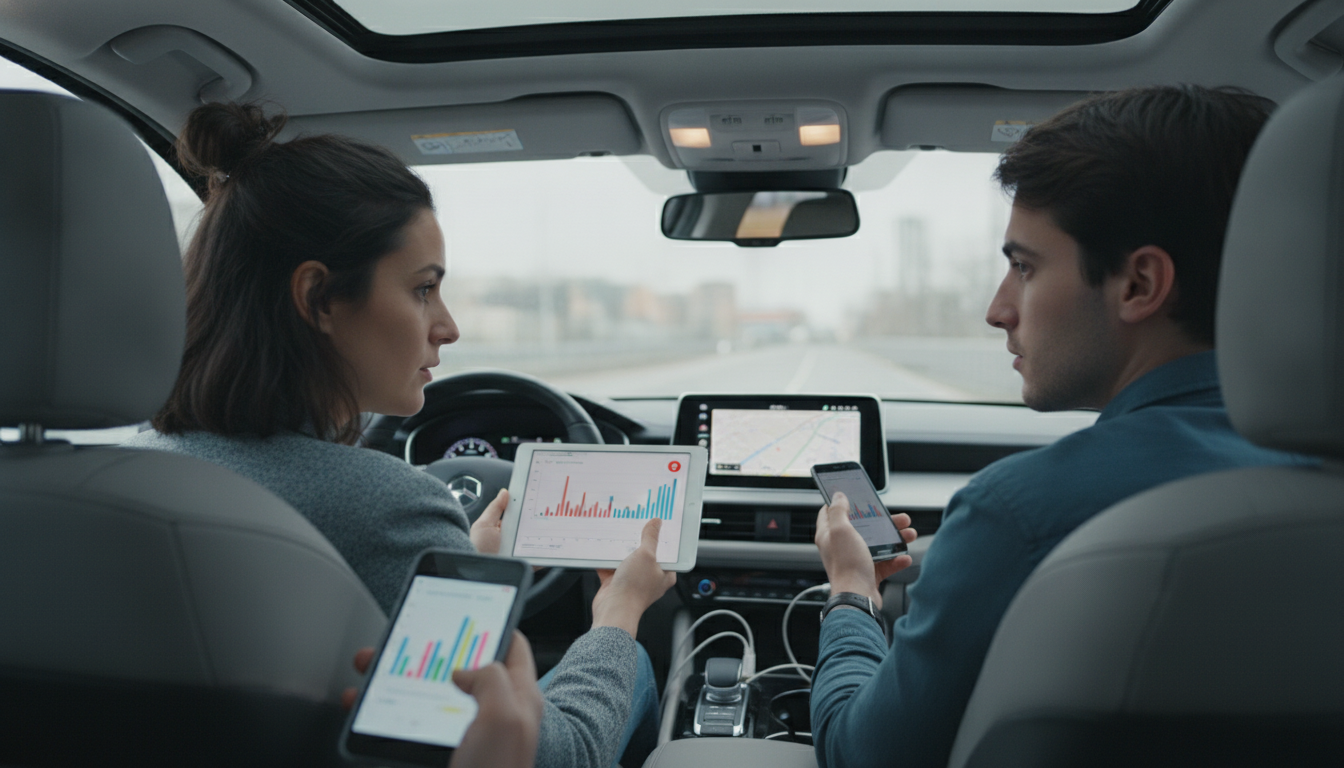
What consumes my data bundles?
Most data bundles disappear faster than expected because many everyday phone activities keep using data in the background, even when the screen is off. The biggest drains are usually streaming, automatic app updates, cloud syncing, and social apps that quietly refresh feeds and upload photos.
Answer
Video streaming is typically the #1 consumer. Watching TikTok, YouTube, Instagram Reels, or Netflix can burn through gigabytes quickly—especially at higher video quality. Even short clips add up because apps often preload the next video.
Music and podcasts also consume data, though less than video. Streaming over cellular during commutes or workouts can chip away at bundles daily. Downloading playlists over Wi‑Fi is one of the fastest fixes.
Social media uses more data than many people realize. Auto-playing videos, high-resolution images, and constant refreshes can be heavy—plus background activity continues unless restricted in settings.
App and system updates can be large. If “Use cellular data” is enabled for updates, one update cycle can wipe out a small plan. The same goes for backing up photos and files to cloud services when Wi‑Fi isn’t available.
Video calls (FaceTime, WhatsApp, Zoom) can consume a lot, particularly with HD video. Switching to audio-only or lowering call quality can help when you’re trying to stretch a bundle.
Hotspot/tethering is another common surprise. Connecting a laptop or tablet often triggers heavier use—software updates, large downloads, cloud sync, and high-resolution browsing.
For a practical, budget-friendly approach to planning and reducing waste across your household routines (including habits that indirectly impact digital spending), check out the main guide here: Smart Bundle Family Meal Planning (4-in-1 Guides, eBooks & Checklists).
For Why Your Data Bundles Run Out Fast (And Fixes), the best answer depends on fit, material, care instructions, and how the product will be used day to day.
FAQ
How can I reduce data usage without changing my plan?
Use Wi‑Fi for streaming and downloads, turn off background app refresh for non-essential apps, and enable data saver/low data mode. Also set app updates and cloud backups to Wi‑Fi only.
Recommended for you


Smart Bundle Data: Uses for Personalized Shopping
Jul 29, 2026
Smart Data Bundle Setup: Share Data Without Overages
Jul 29, 2026













Leave a comment