-
Shop
- Advanced Technologies
- AI Skills
- Bathroom
- Best-Sellers
- Car Accessories
- Confidence
- Dating & Social Skills
- Digital Resources
- AI & Technology
- Beauty
- Budgeting & Saving
- Car Buying & Ownership
- Cozy Feast Collection
- Electronics & Technology
- Entrepreneurship & Business Growth
- Financial Education
- Financial Independence
- Financial Mindset & Psychology
- Goal Setting
- Home Styling & Organization
- Kitchen & Recipes
- Leadership
- Mindfulness
- Mindset
- Online Business
- Parenting & Child Development
- Personal Style & Fashion
- Pet Lifestyle & Wellness
- Positive Thinking
- Sleep Improvement
- Smart Life with AI
- Stress Management & Relaxation
- Travel Planning
- Wellness
- Yoga & Fitness
- Yoga & Mind-Body Practices
- Education & Learning
- Family & Parenting
- Fashion
- Accessories
- Alexander McQueen
- Bags
- Bags & Wallets
- Balenciaga
- Belts
- Blazers
- Bottega Veneta
- Bottoms
- Brunello Cucinelli
- Burberry
- Chanel
- Chloé
- Dior
- Dolce & Gabbana
- Dresses
- Etro
- Fendi
- Gucci
- Hats & Hair Accessories
- Hoodies & Sweatshirts
- Jacquemus
- Jewelry
- Jil Sander
- Kiton
- Luggage
- Miu Miu
- Off-White
- Outerwear
- Prada
- Rick Owens
- Saint Laurent
- Shoes
- Socks & Tights
- Sweaters & Cardigans
- The Row
- Tom Ford
- Tops & Shirts
- Valentino
- Valentino Garavani
- Versace
- Vivienne Westwood
- Watches
- Fashion Accessories
- Furniture
- Gadgets
- Health & Beauty
- Health & Wellness
- Home & Garden
- Home Decor
- Home Electronics
- Home Supplies
- Kids & Babies
- Kitchen
- Kitchen Best-Sellers
- Lighting
- Patio, Lawn & Garden
- Personal Growth
- Pet Care
- Pet Supplies
- Pets
- Sport & Outdoors
- Super Deals
- Travel
- Travel & Adventure
- Wealth
- Popular
- Best deals
Wireless Vertical Ergonomic Mouse: Grip and DPI Guide
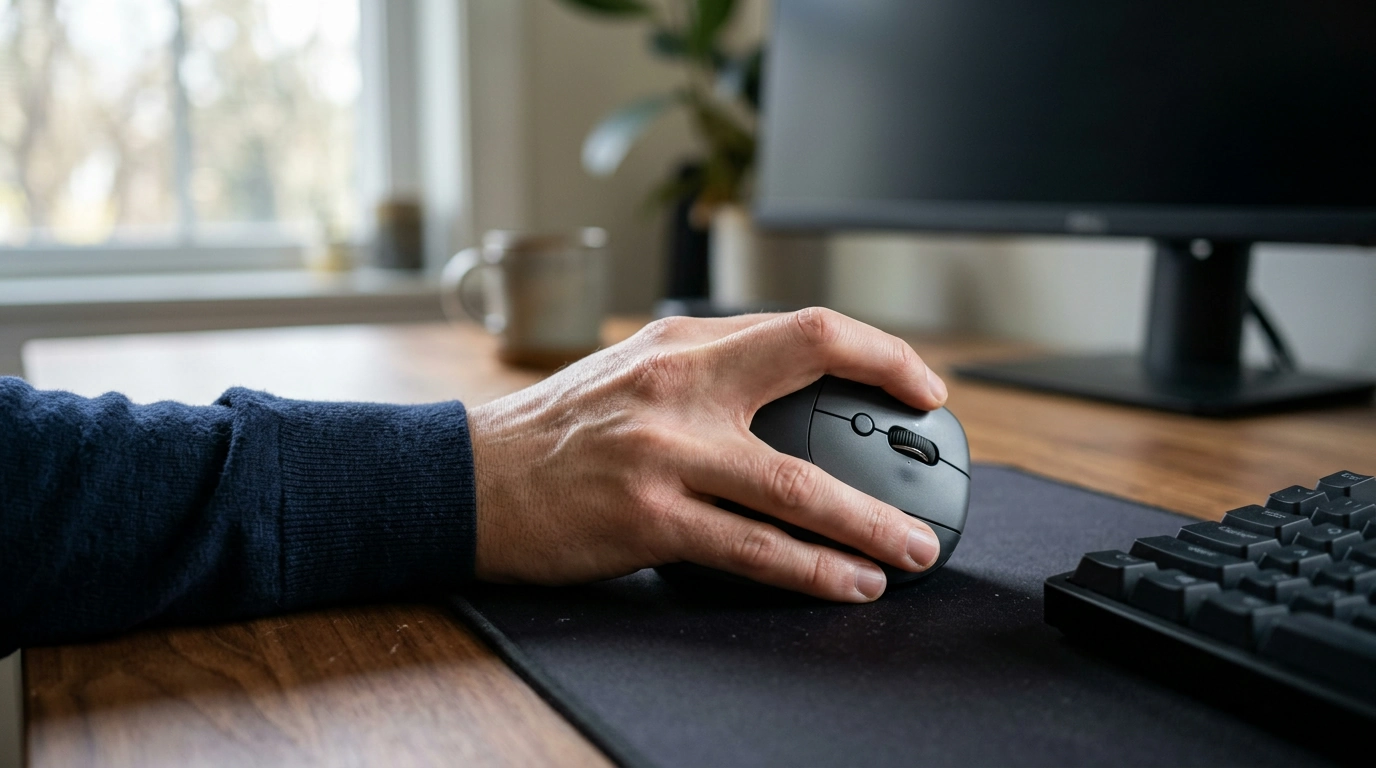
A mouse can shape how you work at your desk throughout the day. Our wireless vertical ergonomic mouse combines a handshake-style grip with a speed roller and adjustable DPI, giving you several practical controls to consider as you refine your setup.
Comfort is personal, though. A different mouse is not a guarantee against discomfort, and it works best as one part of a workspace that fits you. Give yourself time to try the grip, adjust pointer sensitivity, and pay attention to how your hand and arm feel during everyday tasks.
Why Choose a Vertical Mouse?
A conventional mouse generally places your palm facing down. A vertical mouse changes the angle of your grip so your hand sits more like it would during a handshake. That position may reduce forearm rotation compared with using a conventional mouse, which some people find more comfortable.
The change can feel unfamiliar at first. You may need a little practice to move the pointer and use the controls naturally. Start with routine tasks, such as browsing or sorting emails, before deciding whether the grip suits you. Notice whether you can hold the mouse without squeezing it and reach the controls without awkward stretching.
Hand size, desk height, and personal preferences all affect how a mouse feels. If a position causes discomfort, adjust your setup or take a break rather than forcing yourself to adapt. Persistent or worsening discomfort is worth discussing with a qualified healthcare professional.
Speed Roller and DPI Adjustment
The speed roller provides a way to navigate content as you work through pages and documents. It can be useful when you want to move through a longer page without relying entirely on the on-screen scroll bar.
DPI adjustment changes pointer sensitivity. At a lower sensitivity, the pointer generally moves a shorter distance on screen for the same mouse movement. At a higher sensitivity, it generally travels farther. The setting you prefer can depend on your screen, available desk space, and the task at hand.
Choosing a Pointer Sensitivity
| Preference | Potential use |
|---|---|
| Lower sensitivity | More controlled pointer movement for detailed work |
| Higher sensitivity | Faster pointer movement across the screen |
Try a setting while selecting text, opening folders, or moving between browser tabs. If you repeatedly overshoot a small target, lower sensitivity may be worth trying. If reaching the other side of the screen takes more movement than you like, try a higher setting. There is no single ideal DPI for everyone, so adjust it until your pointer feels predictable.
Make It Part of a Comfortable Workspace
Mouse placement matters alongside mouse design. Keep the mouse close to your keyboard so you can reach it without extending your arm unnecessarily. Leave enough clear space to move it freely, and let your arm and shoulder stay relaxed rather than holding them raised or stretched forward.
Adjust your chair and desk position so your forearm and wrist can rest in a comfortable, relatively neutral posture while you work. Avoid pressing your wrist against a hard desk edge. Small changes, such as moving the keyboard closer or clearing objects from your mouse area, can make it easier to maintain a comfortable reach.
Remember to take regular breaks and change positions throughout the day. Stand up, walk around, or switch tasks when you can. For more guidance on arranging your workspace, explore the OSHA Computer Workstations eTool and Cornell University Ergonomics Web.
A Practical Option for Everyday Tasks
If you want fewer cables on your desk and a different grip from a conventional mouse, our Wireless Vertical Ergonomic Mouse with Speed Roller & DPI Adjustment brings those features together. The roller and sensitivity adjustment offer ways to tailor navigation for browsing, documents, and other everyday work. Visit the product page to explore the mouse and see its current price and availability.
For small-business owners also organizing their digital workflow, our AI for Small Business Toolkit – 5-in-1 Digital Download Bundle is a separate resource to explore. Whether you are updating your tools or rearranging your desk, our team recommends choosing changes that fit the way you work.
Before choosing, compare the product details with your daily routine, available space, care needs, and preferred setup. The strongest option is usually the one that fits the intended use clearly and remains simple to clean, store, and check before repeat use.
It is also worth checking measurements, material notes, included parts, and compatibility details so the item matches the way it will be used after delivery.
Before choosing, compare the product details with your daily routine, available space, care needs, and preferred setup. The strongest option is usually the one that fits the intended use clearly and remains simple to clean, store, and check before repeat use.
FAQ
Is a vertical mouse really more ergonomic?
A vertical grip may reduce forearm rotation and feel more comfortable for some people. Individual fit and your overall workstation setup matter, so it is worth trying the grip and adjusting your desk position.
What is the best ergonomic vertical mouse?
The best choice depends on how the mouse fits your hand, how comfortable it feels, and which controls you prefer. Our wireless vertical mouse is an option if you want a vertical grip and adjustable pointer sensitivity.
Recommended for you



Natural Jute Round Placemats for Everyday Dining
Nov 19, 2026













Leave a comment